What Computer Can Run Local AI Models? Check Before You Build
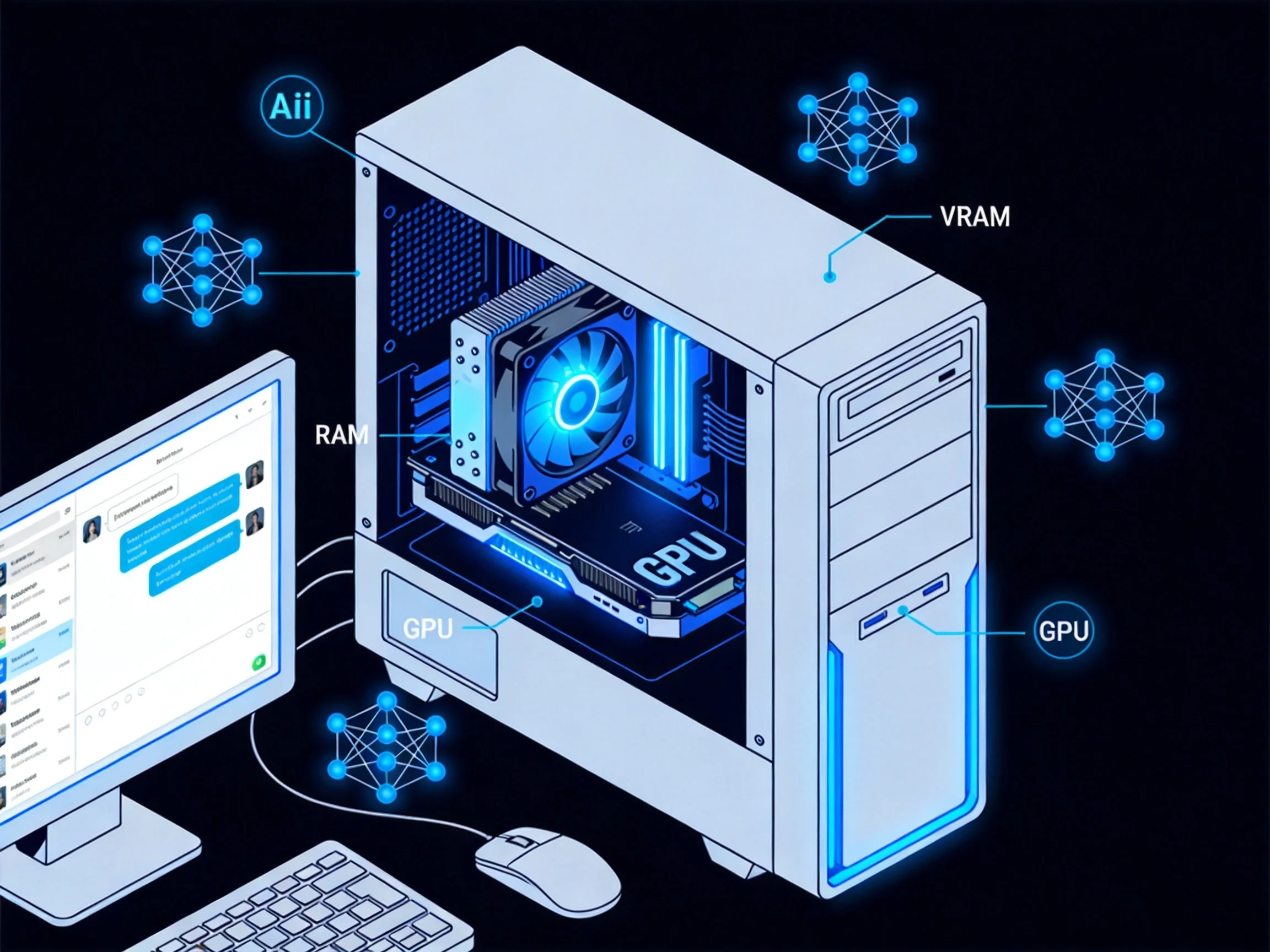
Everyone wants to run AI locally now. Privacy, zero API costs, offline access — the reasons are obvious. But here is the question nobody answers clearly: can your actual computer handle it?
The answer depends almost entirely on one thing: VRAM (video RAM on your GPU). Not your CPU speed, not your SSD, not how much you spent on the machine. If your model does not fit in VRAM, performance collapses. We are talking 5 to 30 times slower — not "a bit laggy," but "why am I even doing this" slow.
Let me break down exactly what you need, what you can skip, and how to check your system before downloading a 40GB model file.
The Golden Rule: VRAM Is Everything
When you run a local AI model, the entire set of model weights must live in memory during inference. Every single token the model generates requires a pass through all those weights. If the model fits entirely in your GPU's VRAM, you get fast, responsive output. If it does not fit, parts of the model spill into system RAM, and speed tanks dramatically.
A model that generates 40 tokens per second in VRAM might manage 8 to 15 tokens per second from system RAM on a fast CPU setup. Both are usable, but the difference is night and day for interactive chat.
The math is simple. At Q4 quantization (4-bit, the most common format), you need roughly 0.5 to 0.6 GB per billion parameters, plus about 20% overhead for context and the operating system.
Hardware Tiers: What You Can Actually Run
Here is the practical breakdown as of mid-2026:
8 GB VRAM — Entry Point
You can run small models in the 1B to 8B parameter range at Q4 quantization. That means models like Llama 3.3 8B, Qwen 3 4B, Phi-4 Mini, and Gemma 3 4B. These are surprisingly capable for summarization, basic code generation, and conversational Q&A.
Expect 40 to 50 tokens per second on a decent GPU. Perfectly usable for chat.
16 GB VRAM — The Sweet Spot
This is where things get good. You can run 7B to 8B models at higher quality (Q8 quantization) and 13B to 14B models at Q4. Models like Qwen 3 8B, DeepSeek-R1-Distill 14B, and Gemma 3 12B become practical.
For most people experimenting with local AI, 16 GB is the realistic starting line. The NVIDIA RTX 4060 Ti 16GB (~$450) or RTX 5070 Ti (~$749) hit this tier.
24 GB VRAM — Serious Local AI
Now you are in territory where models get noticeably smarter. 30B to 34B parameter models at Q4 fit comfortably. Qwen 3 30B, Gemma 3 27B, and Devstral run well here. Output quality on complex reasoning tasks takes a real step up.
The used RTX 3090 ($700-900) remains the community favorite for this tier — best VRAM-per-dollar by far. The RTX 4090 ($1,600) gives you the same 24 GB but with much faster token generation.
32 GB+ VRAM — Frontier Models Locally
The RTX 5090 with 32 GB GDDR7 can run 70B parameter models at Q4 natively. Llama 3.3 70B, Qwen 2.5 72B — these approach GPT-4o quality and run on consumer hardware. But at $2,500 to $3,600 street price (as of May 2026), it is a serious investment.
Apple Silicon Macs offer an alternative path. The Mac Studio M4 Ultra with 192 GB unified memory can run the largest open-source models silently and efficiently, though at lower bandwidth than dedicated GPUs.
RAM: The CPU Fallback
If you do not have a powerful GPU, you can still run models — they just load into system RAM and the CPU does all the work. Here is what you need:
- 8 GB RAM: Tiny models only (1B-3B). Slow but functional.
- 16 GB RAM: 7B-8B models at Q4. Usable for learning and light tasks.
- 32 GB RAM: Up to 32B models at Q4 or 70B with heavy quantization. Good for development work.
- 64 GB RAM: 70B models at Q4-Q5. This is where CPU-based inference starts to feel genuinely useful.
Keep in mind: the model needs 2 to 3 times its file size in available RAM. A 9 GB model file wants at least 18 GB of free RAM to run smoothly, because the inference process generates temporary data beyond just loading the weights.
Storage: Speed Matters More Than Size
Model files are large. A quantized 70B model is 40-45 GB. Even a 7B model can be 4-5 GB. But storage capacity is rarely the bottleneck — modern SSDs are big enough.
What does matter is speed. Loading a 40 GB model from an NVMe SSD (3,500+ MB/s) takes about 12 seconds. From a SATA SSD (550 MB/s), that jumps to over a minute. From an HDD (100-200 MB/s)? You could be waiting 4 to 7 minutes every time you start the model.
Use an NVMe SSD. Seriously. Do not try to run models from a mechanical hard drive.
CPU: The Supporting Role
If you have a GPU with enough VRAM, the CPU barely matters for inference. It handles input/output and orchestration, but the GPU does the heavy lifting.
If you are running CPU-only inference, then the CPU matters a lot. More cores and higher clock speeds directly translate to faster token generation. For CPU-only, aim for at least 8 cores and pair it with fast DDR5 RAM for better memory bandwidth.
Quick Hardware Reference
| Budget | GPU | VRAM | Best Model Size |
|---|---|---|---|
| Under $500 | Intel Arc B580 | 12 GB | 7B-8B (Q4) |
| $450-600 | RTX 4060 Ti 16GB | 16 GB | 8B-14B (Q4) |
| $700-900 | RTX 3090 (used) | 24 GB | 30B-34B (Q4) |
| $1,600 | RTX 4090 | 24 GB | 30B-34B (Q4), fast |
| $2,500+ | RTX 5090 | 32 GB | 70B (Q4) |
| $499+ | Mac Mini M4 16GB | 16 GB unified | 7B-8B (Q4) |
| $7,999 | Mac Studio M4 Ultra | 192 GB unified | 120B+ (Q4) |
Check Your System First
Before you buy hardware or download models, figure out what you already have. On Windows, open Task Manager → Performance → GPU to see your VRAM. On Mac, click the Apple menu → About This Mac to check unified memory.
Or just use the AI Model Checker on ToolMixr. It detects your GPU and RAM, then tells you exactly which models will run on your hardware and how fast they will generate tokens. No guessing, no downloading a 40GB file only to find out it does not fit.
The Software Side: Getting Started
Hardware is only half the equation. You also need software to actually run the models. The two most popular options as of 2026:
Ollama — The easiest way to get started. Install it, type ollama run llama3.3, and it downloads the model and starts chatting. Handles quantization automatically. Works on Windows, Mac, and Linux. Setup takes about 5 minutes.
LM Studio — A graphical interface for downloading and running models. Good if you prefer clicking buttons over typing commands. Also handles quantization and shows you VRAM usage in real time.
Both are free. Both support the same GGUF model format. Start with whichever feels more comfortable.
What About Apple Silicon?
Mac users have a unique advantage: unified memory. On Apple Silicon Macs, the same RAM pool serves both CPU and GPU. A Mac with 24 GB unified memory can treat nearly all of it as VRAM for running models.
This means a Mac Mini M4 with 24 GB unified memory (~$799) can run models that would require a much more expensive NVIDIA GPU setup on a PC. The trade-off is lower memory bandwidth — Apple's unified memory runs at 273 GB/s on the M4 Pro, while the RTX 4090 delivers over 1,000 GB/s. Models run, but they generate tokens more slowly.
For silent, power-efficient local AI where speed is not the top priority, Apple Silicon is hard to beat.
Common Mistakes
1. Starting with the biggest model. A smaller model running fast is more useful than a massive model crawling at 2 tokens per second. Start with an 8B model and move up only if you need better reasoning.
2. Ignoring quantization. A Q4 (4-bit) version of a model runs in roughly a quarter of the VRAM of the full-precision version, with only a small quality drop. Always start with Q4 quantized models.
3. Buying a fast GPU with low VRAM. An RTX 5070 (12 GB) is a faster GPU than an RTX 3090 (24 GB), but the 3090 can run much larger models because it has double the VRAM. For local AI, VRAM capacity beats GPU speed every time.
4. Forgetting the 20% overhead. If a model needs 14 GB to load, you need at least a 16 GB card. The remaining 2 GB is used for the KV cache (context window) and system overhead. Running at 99% VRAM usage causes crashes.
Related Articles
Running AI locally is no longer a weekend experiment — it is a real, practical option in 2026. The key is matching your hardware to the models you actually want to run. Check your VRAM, pick the right model size, use quantization, and start small. You can always scale up later.