Why Your Social Media Links Look Broken (And How OG Images Fix It)
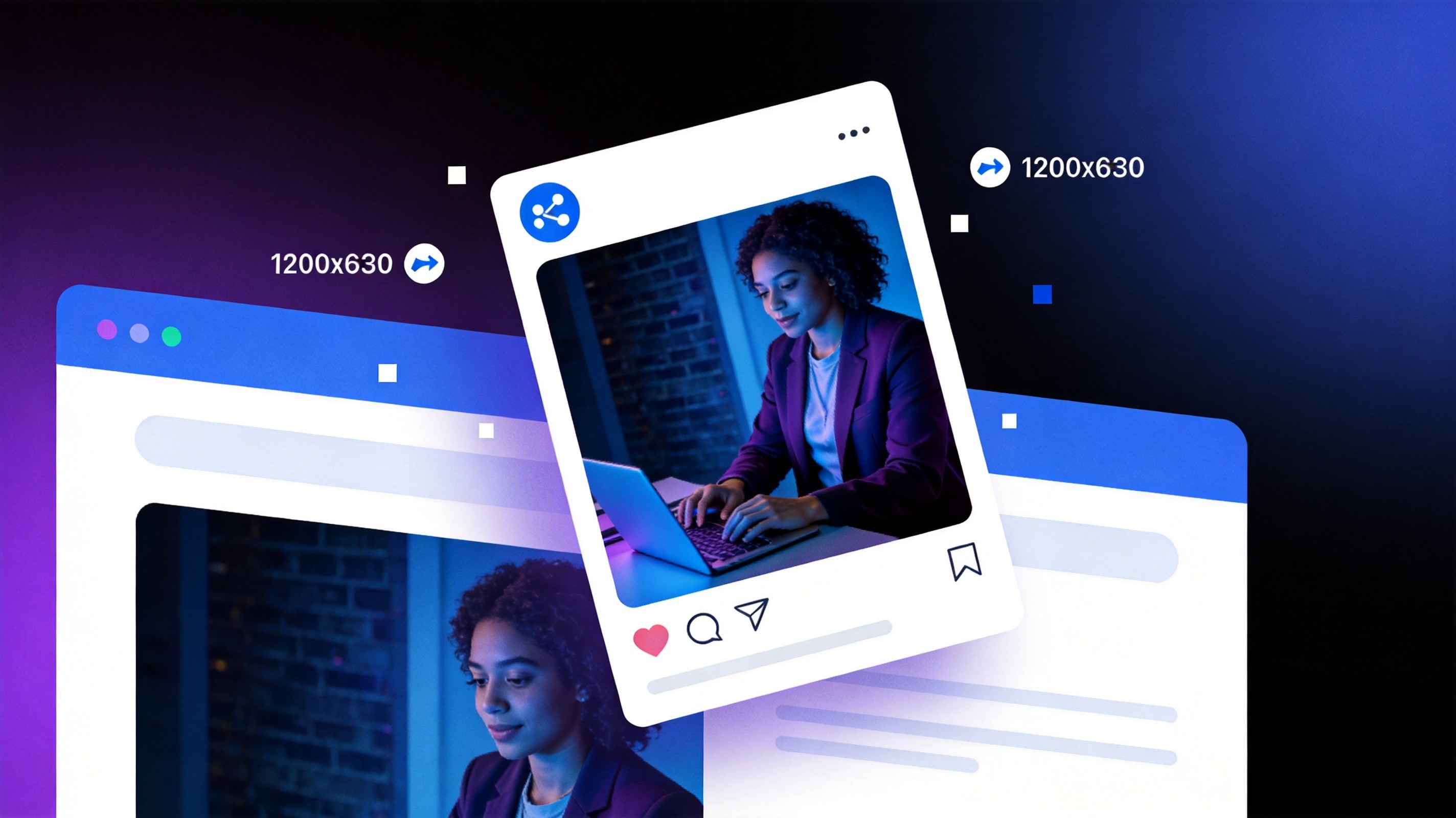
You know that feeling when you share a link on Slack or Twitter and it shows... nothing? Just a bare URL sitting there like a sad, naked string of text. Meanwhile, the link right above yours from The Verge has a gorgeous image, a punchy title, and a clean description.
That's not magic. That's Open Graph, and if your links don't have it, you're invisible on social media.
I spent over a year running a blog where every shared link looked like garbage. No image. Random description text pulled from who-knows-where. Sometimes even the wrong title. I didn't realize how much traffic I was losing until I finally fixed my OG tags and saw social referral clicks jump 40% literally overnight.
What Is Open Graph?
Open Graph is a protocol created by Facebook (now Meta) in 2010. It lets you control how your content appears when shared on social media platforms, messaging apps, and link preview services.
At its core, it's a set of meta tags you add to your HTML <head>:
<meta property="og:title" content="Your Page Title" />
<meta property="og:description" content="A compelling description" />
<meta property="og:image" content="https://yoursite.com/image.jpg" />
<meta property="og:url" content="https://yoursite.com/page" />
<meta property="og:type" content="article" />
When someone pastes your URL into Slack, Twitter, LinkedIn, Discord, or iMessage, the platform fetches these tags and builds that nice preview card. Without them, the platform guesses — and it usually guesses wrong.
The OG Image: Your Most Important Social Asset
Of all the OG tags, the image is by far the most important. Studies consistently show that social media posts with images get 2-3x more engagement than text-only posts. Your OG image is the first thing people see when your link appears in their feed.
But not just any image works. Here are the specs that actually matter:
- Ideal size: 1200 × 630 pixels (1.91:1 ratio)
- Minimum size: 600 × 315 pixels
- Format: JPG or PNG (JPG for photos, PNG for graphics with text)
- File size: Under 5MB (under 1MB is even better for fast previews)
Why 1200×630? Because that's the ratio that works across the most platforms. Facebook, Twitter (now X), LinkedIn, and Slack all use similar aspect ratios for their link previews. If you use a square image, it gets cropped. If you use a tall image, it gets cropped even more aggressively.
Common OG Image Mistakes
After auditing dozens of sites (including my own), here are the mistakes I see most often:
1. No OG Image at All
This is still the most common problem. Roughly 30% of websites don't set an og:image tag. The result? When someone shares your link, the platform either shows nothing or picks a random image from your page — which might be a logo, a button, or someone's avatar.
2. Using a Generic Site-Wide Image
Some sites set one OG image and use it for every page. So when you share their blog post about password security, the preview shows the same generic hero image as their homepage. It works, but it's a missed opportunity. Unique OG images for each page can increase click-through rates significantly.
3. Text That's Too Small
You designed a beautiful OG image with a headline on it. It looks great on your monitor. But on a phone screen in someone's Twitter feed, that text is maybe 4 pixels tall. If you include text in your OG image, make it large — at least 60px in your source image. Anything smaller gets unreadable in the preview.
4. Forgetting Twitter Card Tags
Twitter has its own meta tags that work alongside Open Graph:
<meta name="twitter:card" content="summary_large_image" />
<meta name="twitter:title" content="Your Title" />
<meta name="twitter:description" content="Your Description" />
<meta name="twitter:image" content="https://yoursite.com/image.jpg" />
If you don't set twitter:card to summary_large_image, Twitter will show a tiny thumbnail instead of the big image card. It's one line of code, but it makes a huge difference.
5. Wrong or Missing URL
If your og:url doesn't match the page's canonical URL, some platforms get confused and may not display the preview at all. Always make sure they match:
<link rel="canonical" href="https://yoursite.com/page" />
<meta property="og:url" content="https://yoursite.com/page" />
How Platforms Handle OG Tags Differently
Not all platforms treat Open Graph the same way. Here's what I've found through testing:
- Facebook/Meta: Follows OG tags closely. Caches images aggressively — if you update your OG image, use the Sharing Debugger to force a refresh.
- Twitter/X: Falls back to OG tags if Twitter-specific tags aren't set. The
twitter:cardtag is essential. - LinkedIn: Uses OG tags. Has a Post Inspector tool similar to Facebook's debugger.
- Slack: Unfurls links using OG tags. Very reliable if tags are set correctly.
- Discord: Also uses OG tags for link embeds. Shows the image, title, and description.
- iMessage: Uses OG tags for rich link previews on iOS.
The universal lesson: set your OG tags properly, and they'll work everywhere. Skip the Twitter-specific tags, and you'll still get previews on most platforms — just not the large image card on Twitter.
Designing Effective OG Images
Here's my process for creating OG images that actually get clicks:
- Start with the brand — Your logo or brand color in a corner. Subtle but consistent.
- Add a clear headline — Not your full page title. A shortened, punchy version. Maximum 8 words.
- Use high contrast — Dark text on light background or vice versa. Avoid low-contrast combinations.
- Keep it simple — One focal point, one message. Don't try to cram your entire article into the image.
- Test on mobile — Shrink your image to 300px wide. Can you still read the text? If not, it's too small.
I used to overthink OG images. Now I use a simple template: gradient background, large headline, small logo. It takes 5 minutes per page and the consistency actually helps with brand recognition.
Debugging Your OG Tags
Before you publish, always test your OG tags. These are the tools I use:
- Facebook Sharing Debugger — Shows exactly what Facebook will display and lets you refresh the cache.
- Twitter Card Validator — Preview your Twitter card appearance.
- LinkedIn Post Inspector — Check how LinkedIn renders your link.
- View Source — The simplest check. Right-click, View Page Source, search for "og:". If the tags are there and correct, you're probably fine.
The Quick Fix
If you've been ignoring OG images because designing them is a hassle, I built an OG image generator that creates properly sized images in seconds. Pick a template, add your text, download a 1200×630 image that works everywhere.
It's one of those small changes that has an outsized impact. Fix your OG images today, and every link you've ever shared starts looking better the next time someone shares it.